
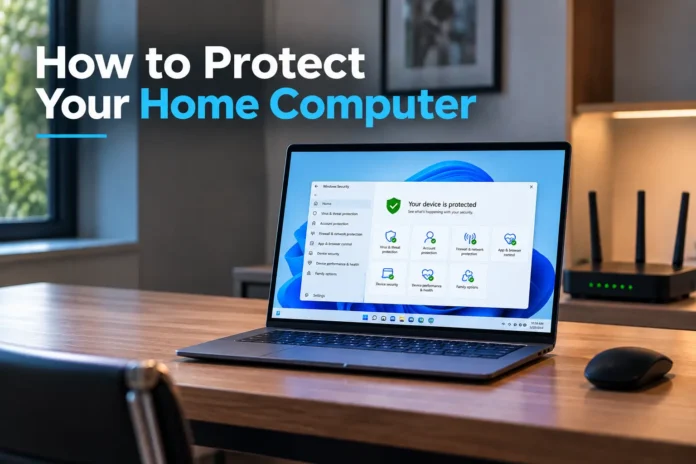
The short answer to how can you protect your home computer is this: run one good antivirus, keep Windows 11 or macOS fully patched, use strong passwords with a password manager, turn on the firewall, and back up your files. Do those five things and most attacks never get through. The steps below cover exactly what to install, which settings to change, and the habits that keep viruses, ransomware, and phishing off the machine.
The threat is not abstract. The FBI’s Internet Crime Complaint Center (IC3) logged 859,532 complaints in 2024 with reported losses of $16.6 billion, a 33% jump over the year before — and phishing/spoofing was the single most reported crime. A home computer is a common entry point, and the fixes below take an evening to set up.
Install and maintain security software
Security software is the first layer of defense. It does two jobs: it scans files for viruses and spyware, and it watches the system for suspicious, virus-like behavior. Most tools handle both.
Windows 11 ships with Microsoft Defender, which is already switched on and pulls fresh virus definitions automatically through Windows Update. For most home users, that is enough. If a paid product is preferred, Bitdefender and Norton are reliable choices, while Avast and AVG offer free tiers.
Whatever gets installed, the rule stays the same: keep the virus pattern files current. Antivirus is only as good as its last update, so leave automatic updates on and run a full scan once a week.
Run only one antivirus program at a time. Two real-time scanners will read each other’s activity as a threat, slow the computer down, and throw false alarms. Pick one and remove the rest.
For a second opinion, keep Malwarebytes on hand. It is not a full-time antivirus replacement, but an on-demand scan catches adware and spyware that a primary scanner sometimes misses. On Windows, Spybot Search & Destroy is another free anti-spyware option. Update its database before every scan for the best results.
If sensitive files live on the drive — tax records, photos of IDs, saved card numbers — use Spirion (formerly Identity Finder) to locate that personal information so it can be moved somewhere safer or deleted. Loose personal data is exactly what attackers cash in after a breach.
Keep the operating system and software patched
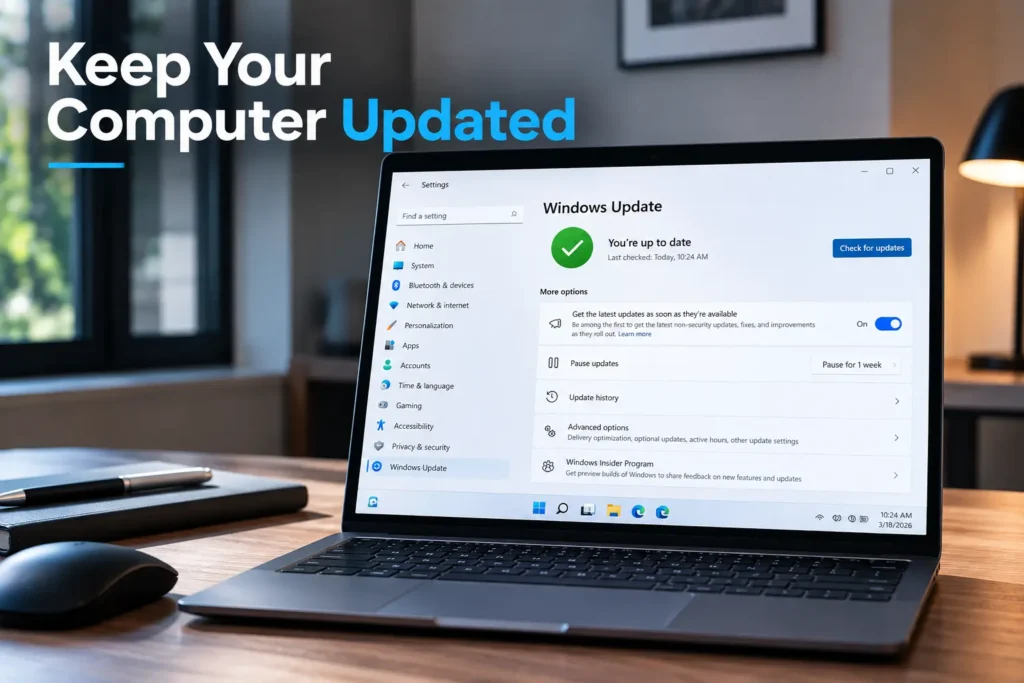
Most successful attacks exploit a flaw that already has a fix. Run a supported, current operating system — Windows 11 or the latest macOS — and apply every update.
On Windows 11, open Settings > Windows Update and turn on automatic updates; this also patches Microsoft Office and Edge. On macOS, go to System Settings > General > Software Update and enable automatic updates.
Browsers, Adobe Reader, and other third-party apps have their own auto-update switches — turn each one on. Outdated software is the easiest way in, so patching shuts that door in about a minute a week.
Lock down passwords and accounts
Weak and reused passwords sit behind a large share of break-ins. Verizon’s 2025 Data Breach Investigations Report found stolen credentials were the top way attackers got in, involved in 22% of all breaches.
Use a long, unique password for every account and store them in a password manager instead of a notebook or the browser. 1Password and Keeper are strong paid options, Bitwarden has a genuinely usable free tier, and KeePass is free and offline. Dashlane and LastPass are widely used as well. Any of them beats using one password everywhere.
Never share a password — not with family, not with anyone claiming to be support staff. On top of that, turn on two-factor authentication (2FA/MFA) for email, banking, and every account that offers it. Even if a password leaks, that second code blocks the login.
Set up a standard user account for everyday use and keep a separate administrator account only for installing software. Browsing and reading email from a standard account limits the damage if malware runs, because it cannot make system-wide changes without the admin password.
Turn on the firewall and secure the network
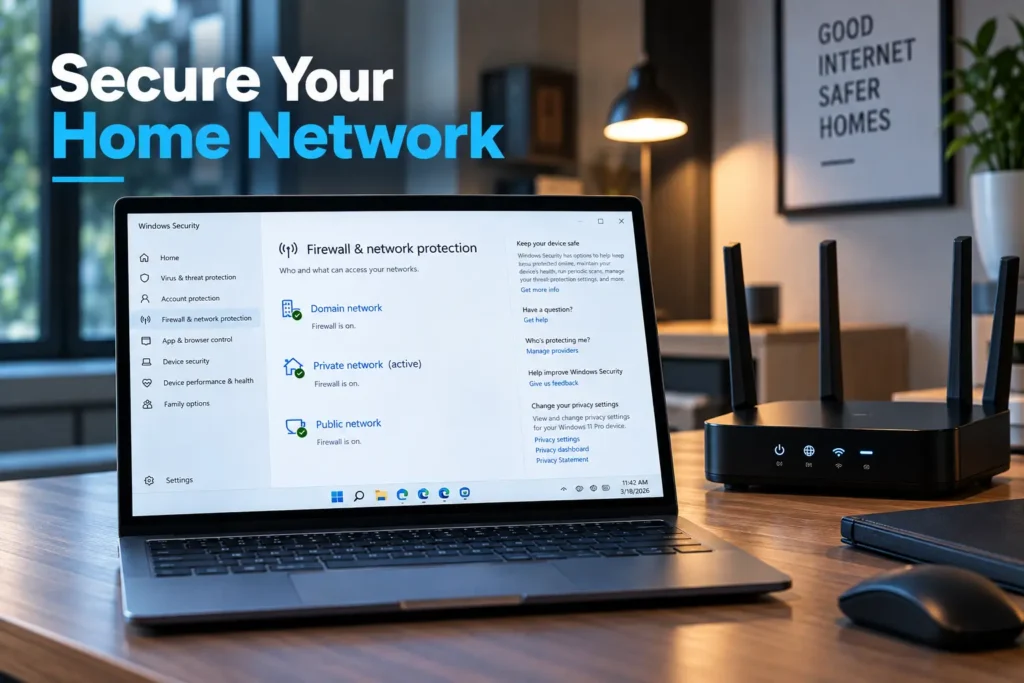
A firewall controls which programs are allowed to send and receive data. Windows and macOS both include one.
On Windows 11, it runs by default under Windows Security > Firewall & network protection; on macOS, enable it under System Settings > Network > Firewall.
Secure the Wi-Fi too. Change the default router admin password, set the network to WPA3 encryption (or WPA2 if WPA3 is unavailable), and keep the router firmware updated. On public or shared networks, a VPN encrypts the connection so traffic cannot be intercepted — handy for online banking away from home.
Browse, click, and download carefully
Tools stop a lot, but everyday habits stop the rest.
- Do not click links that cannot be verified. Phishing arrives by email, text, and chat, usually as a bare link or an urgent request. Hover to check the real address, and when in doubt, type the site in by hand.
- Do not open attachments from unknown senders or messages with strange subject lines. Attachments are a common carrier for viruses and ransomware.
- Download software only from official sites or the built-in app stores. Cracked apps, pirated movies and music, and random download portals are frequent sources of spyware and bundled malware. Scan anything new before opening it.
- Check for HTTPS and the padlock before entering a password or card number. A missing or invalid certificate is a warning sign.
- Treat USB drives and external media with caution. Do not plug in a drive from an unknown source; it remains one of the oldest ways to spread an infection.
Back up your files
Backups are the direct answer to ransomware — which showed up in 44% of breaches in the 2025 Verizon DBIR. If files get encrypted or a drive fails, a recent backup means no ransom paid and no data lost. Keep two copies — one on an external drive and one in cloud storage — and every so often confirm that the backup actually restores.
Watch for the warning signs
Sudden slowdowns, constant pop-ups, browser redirects, unfamiliar programs at startup, or antivirus that has switched itself off can all point to an infection.
If any of those appear, disconnect from the internet and run a full scan with the primary antivirus and Malwarebytes. Afterward, change important passwords from a device known to be clean.
None of this requires great technical skill. Knowing how can you protect your home computer comes down to layering a few reliable tools with a handful of careful habits — and keeping both up to date.
Frequently Asked Questions
What is the single most important step?
Keeping the operating system and antivirus updated. Most attacks exploit known flaws that a current Windows 11 or macOS patch has already fixed.
Is Microsoft Defender enough, or is paid antivirus needed?
For most home users, Microsoft Defender is enough as long as Windows Update stays on. Paid tools like Bitdefender or Norton add extra features but are not required.
Can two antivirus programs run at the same time?
No. Two real-time scanners conflict, slow the system, and create false alarms. Run one antivirus, and use Malwarebytes only for on-demand scans.
Does a home computer need a VPN?
Not at home on a secured network. A VPN is worth using on public or shared Wi-Fi to keep banking and login data from being intercepted.
How often should backups run?
Automatically, at least once a week, and daily for important files. Keep one copy on an external drive and one in the cloud.
How can you tell if a computer is infected?
Watch for slowdowns, pop-ups, browser redirects, unknown startup programs, or disabled security software. Run a full scan right away if any show up.